> ## Documentation Index
> Fetch the complete documentation index at: https://docs.fapshi.com/llms.txt
> Use this file to discover all available pages before exploring further.
# Event Ticketing
> Create events, track bookings, and sell event tickets and registration online through Fapshi
***
Fapshi empowers you to sell your event tickets online via a link that shows your event details and ticket categories. Interested persons can select a ticket category and quantity and pay directly online. They'll receive a receipt of payment, while you'll have access to all bookings directly on your Fapshi dashboard or mobile app.
## How to Create an Event
**Step 1:** Log into your dashboard and navigate to **Collections > Events**.
**Step 2:** Click the "Create an event" button at the top right.
**Step 3:** Fill in the required details and confirm. You have to add the different ticket categories and their prices. Insert how much you want to receive in the "Income field" (Revenue field on the Mobile App) and the amount for the category will be generated automatically for you. Save the spot category to add another or proceed.
Even though it's optional, we recommend adding the event flyer, date, time, and location. These make the event page more UI friendly and informational.
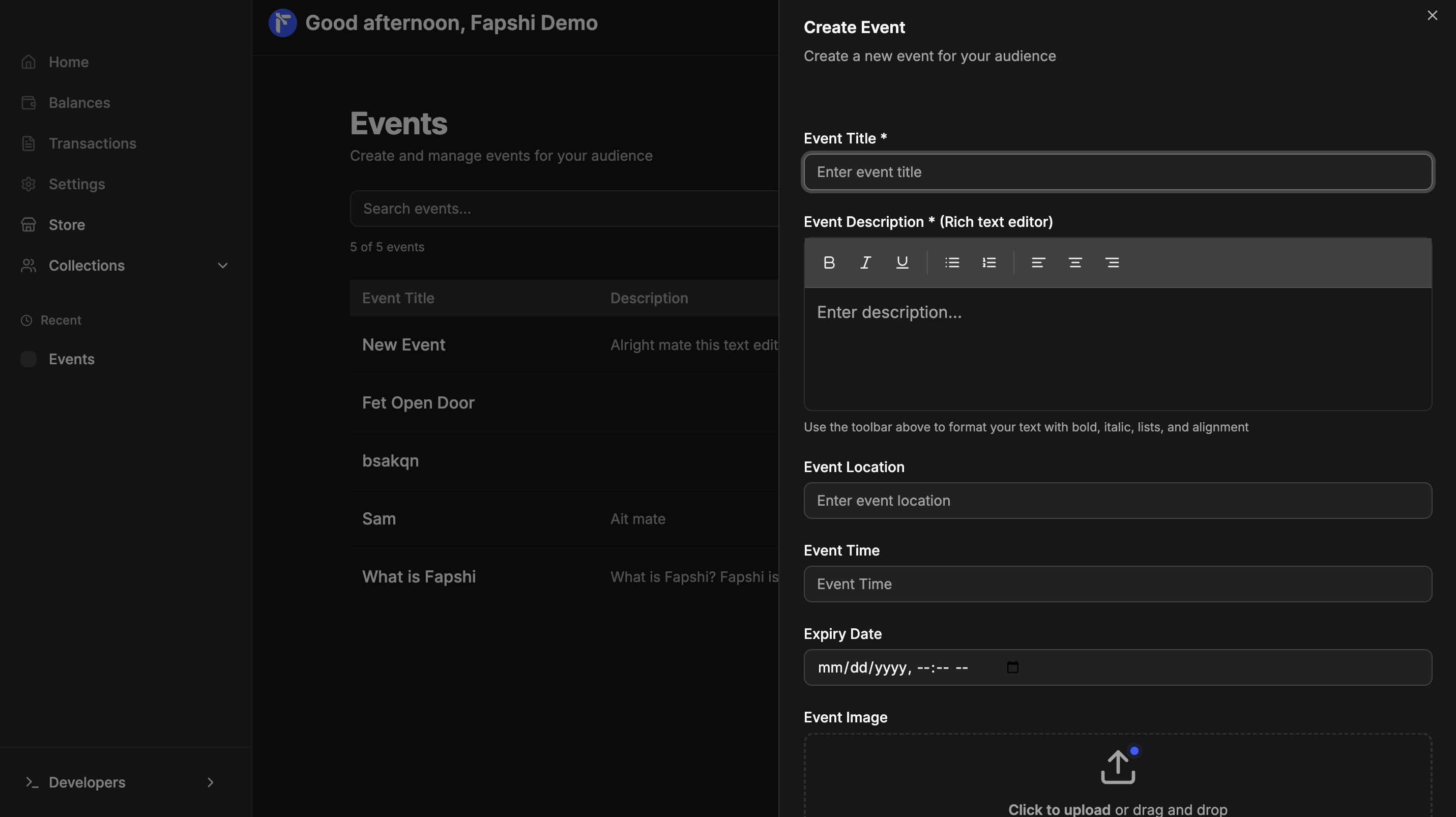 **Step 4:** Your event link & code will be generated and you can copy and share them!
## How to Book Tickets
If you tap the event link, it will open the event page.
**Step 4:** Your event link & code will be generated and you can copy and share them!
## How to Book Tickets
If you tap the event link, it will open the event page.
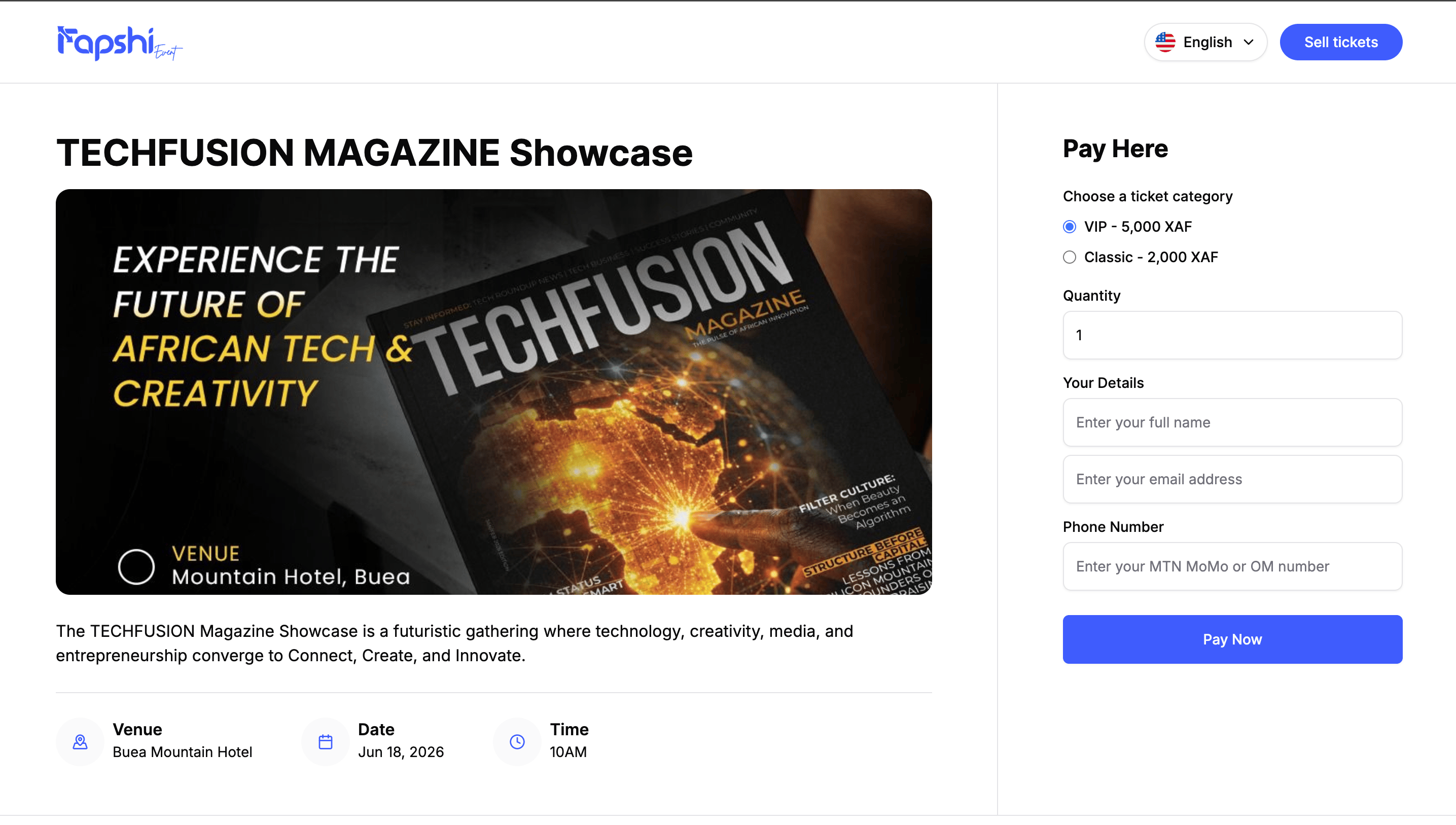 The booking process can be divided into three simple steps:
### Step 1: Select the ticket category
Select the ticket category and insert the quantity of tickets you want to buy.
### Step 2: Fill in your information
Fill in your Name, Email, and Payment number **(This is the number of the MTN MoMo or Orange Money account the money will be deducted from)**.
Ensure you have enough money in your account to pay for the tickets, else, the transaction will fail.
Also, you must select a ticket (spot) category to proceed.
### Step 3: Payment
Confirm payment by tapping the **Pay Now** button. Once you do, a popup will appear on your phone to fill in your MoMo or OM PIN. Do so to confirm payment.
If the transaction is successful, a receipt of payment will be generated which will serve as your digital ticket. You can download it and keep for reference. You will also receive an email.
## How to Check Bookings
All transactions (failed or successful) will appear on your Fapshi dashboard. Fapshi provides you with out-of-the-box booking management so that you can focus on the event proper. You can download all the bookings as **PDF** or **Excel sheet** and use this for check-ins.
The booking process can be divided into three simple steps:
### Step 1: Select the ticket category
Select the ticket category and insert the quantity of tickets you want to buy.
### Step 2: Fill in your information
Fill in your Name, Email, and Payment number **(This is the number of the MTN MoMo or Orange Money account the money will be deducted from)**.
Ensure you have enough money in your account to pay for the tickets, else, the transaction will fail.
Also, you must select a ticket (spot) category to proceed.
### Step 3: Payment
Confirm payment by tapping the **Pay Now** button. Once you do, a popup will appear on your phone to fill in your MoMo or OM PIN. Do so to confirm payment.
If the transaction is successful, a receipt of payment will be generated which will serve as your digital ticket. You can download it and keep for reference. You will also receive an email.
## How to Check Bookings
All transactions (failed or successful) will appear on your Fapshi dashboard. Fapshi provides you with out-of-the-box booking management so that you can focus on the event proper. You can download all the bookings as **PDF** or **Excel sheet** and use this for check-ins.
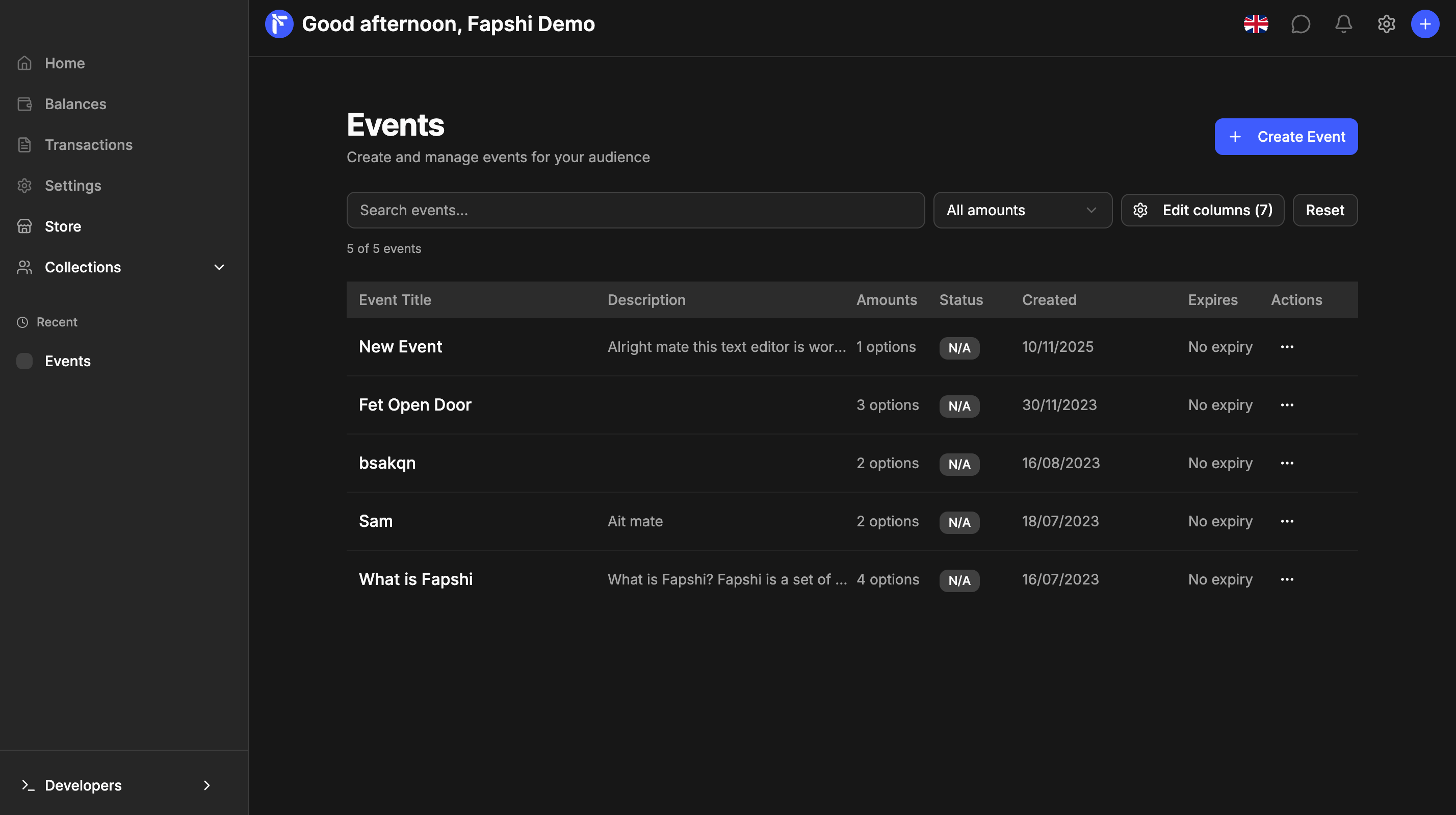 If you're using the mobile app, the steps are the same. Open the **Collections** tab, select **Event ticketing** or tap **Event ticketing** on the home screen and follow the same steps.